



 Home
Home


How to deactivate (delete) products, customers, or vendor records
Did you make a mistake and need to delete records? Unfortunately, it’s not possible to delete products, customers, or vendors in inFlow. However, you can deactivate them so they do not appear in your listing views (unless you’re specifically looking for them).
Web
Take a look at the video below for steps on deactivating products and canceling orders. And there are steps on how to find these deactivated records should you need them again.
Deactivating a record
- Open the record (Product, Customer, or Vendor). If you need to recreate this as a new record, rename it before deactivating it. This is because inFlow does not accept duplicate names, regardless of whether the record is activated/deactivated.
- If this is a product record, set all stock levels for this item to zero. If you don’t do this, then inFlow will still show the record in your Current stock window.
- Click the Deactivate button in the top Action bar.
- Click Save.
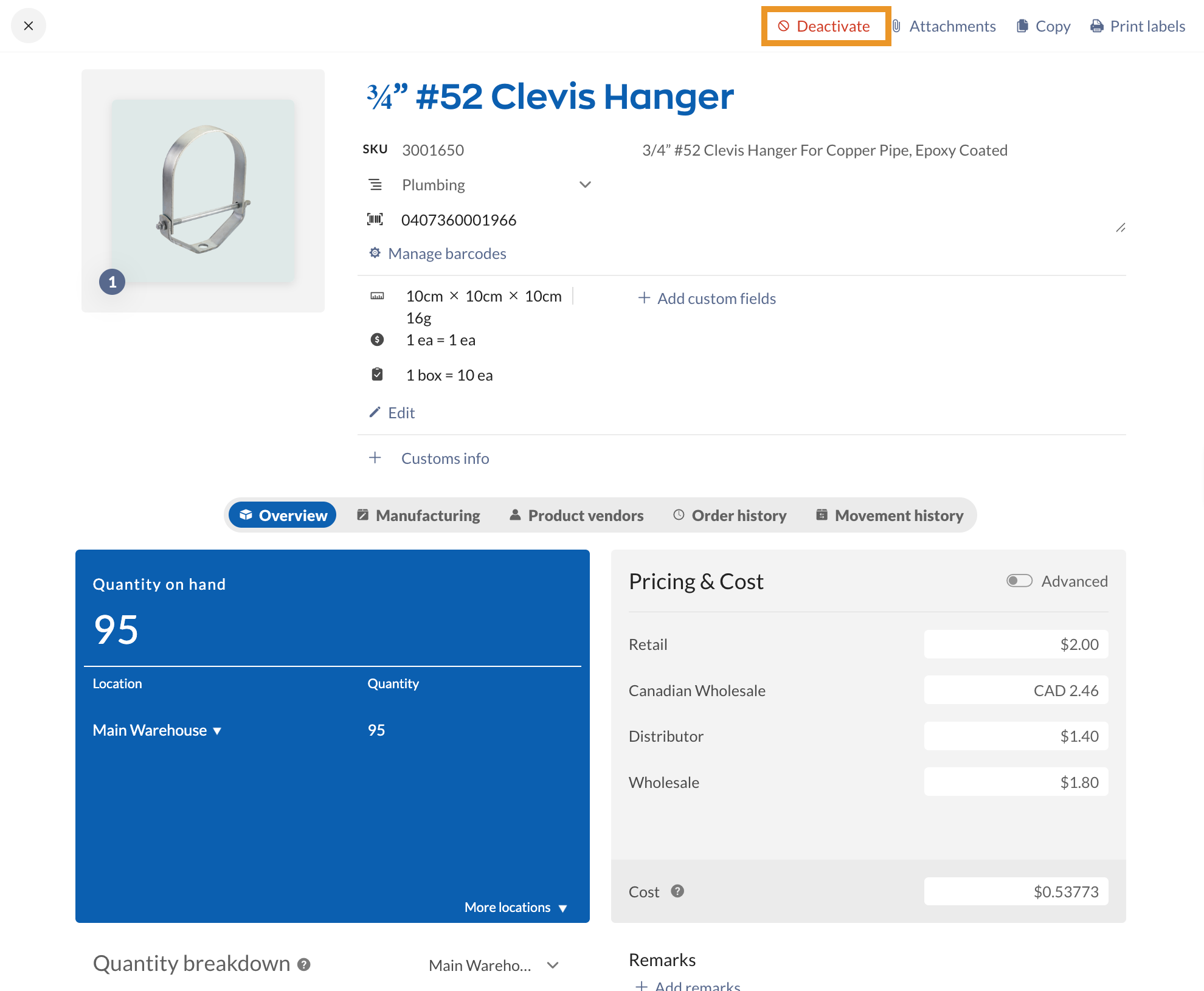
If you want to re-create the record with all new and correct information, you can now do so by clicking the +New button and entering the new info. As long as you’ve renamed the deactivated record, you can reuse the name.
Accidentally deactivated a record? Here’s how to reactivate it!
Windows
To deactivate a record:
- Open the record (Product, Customer, or Vendor).
- If you need to re-create this as a new record, rename it before deactivating it. This is because inFlow does not accept duplicate names, regardless of whether the record is activated/deactivated.
- If this is a product record, set all stock levels for this item to zero. If you don’t do this, then inFlow will still show the record in your current stock window.
- Click the Deactivate button in the top Action bar.
- Click Save.
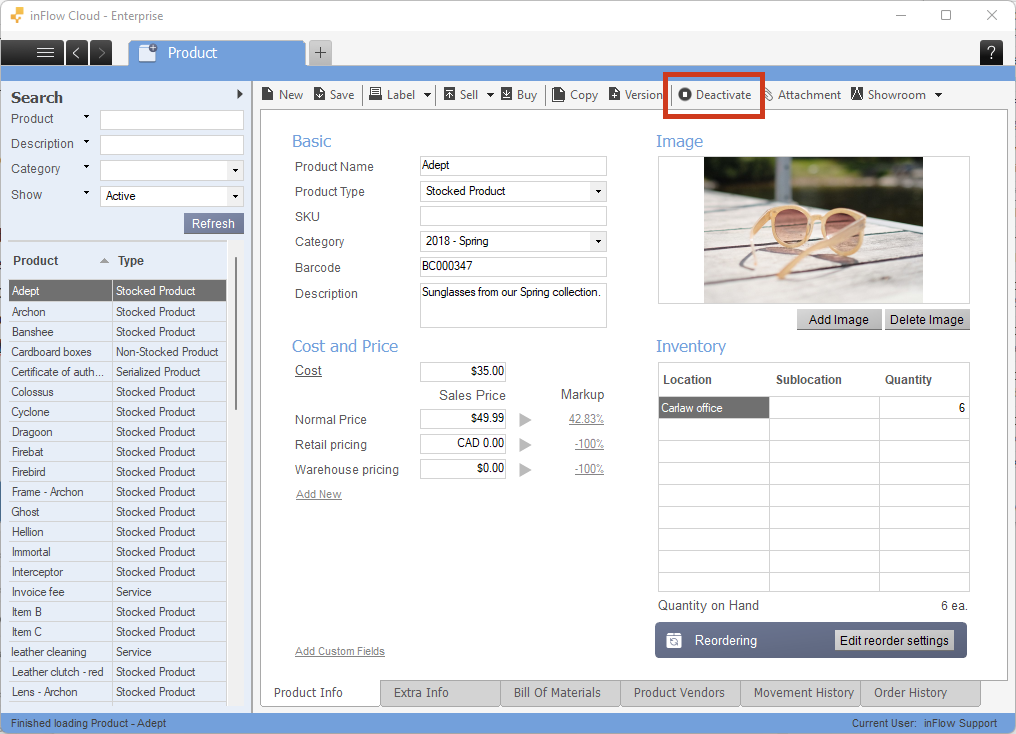
If you want to recreate the record with all new, correct information, you can now do so by clicking the New button and entering the new information. As long as you’ve renamed the deactivated record, you can reuse the name.
Accidentally deactivated a record? Here’s how to reactivate it!
 Yes, thanks!
  Not really

You can add an actual delete feature. My inflow has thousands of useless products that make searching an absolute nightmare. Deactivating doesn’t help, just makes things more convoluted
I NEED TO FIND THE DEACTIVATED ONE SO I CAN CHANGE THE NUMBER ON IT, SO THAT I MAY USE THE # THAT IS ASSIGNED TO IT..
I would like to update address on customers since they moved. Records can stay the same but address update is difficult.
I want to delete several items at once without having to deactivate each item individually.