



 Home
Home


How to track variants in inFlow (sizes and colors)
inFlow helps you effortlessly track product variants, such as sizes and colors, ensuring accurate inventory management and streamlined sales processes.
How do variants work in inFlow?
In inFlow, you can manage variants by creating a product group. A product group serves as a container that includes all the variant options.
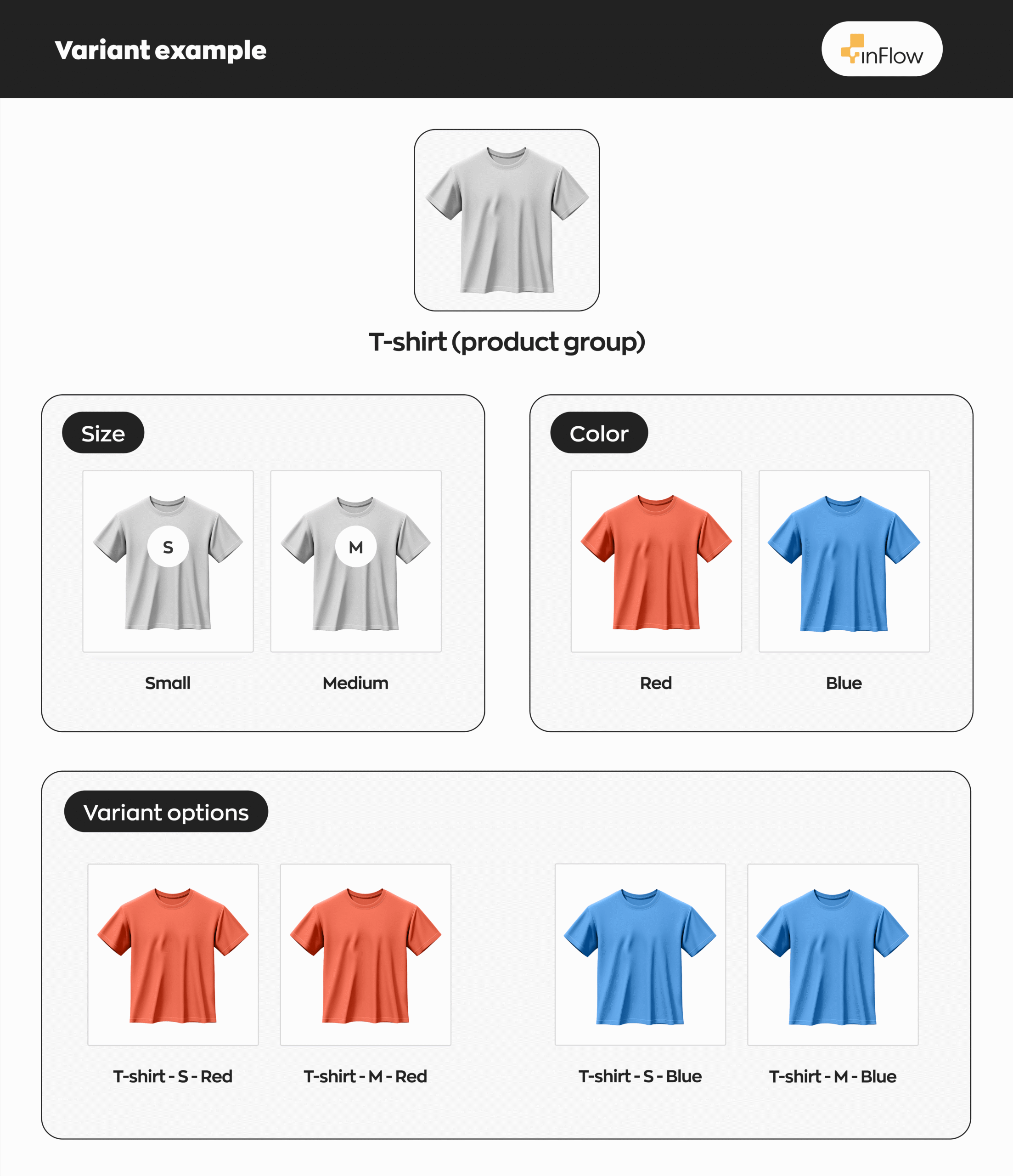
You can create products and product groups as stocked, non-stocked, or service types.
Product groups
In inFlow, product groups serve as a product type designed solely to contain variant options. You cannot purchase or sell product groups directly, and you can only edit limited details on the product group record.
Variant options
Options are different versions of a product within a product group. A typical example is offering size and color options for a T-shirt product group.
What’s the difference between product groups & variant options in inFlow?
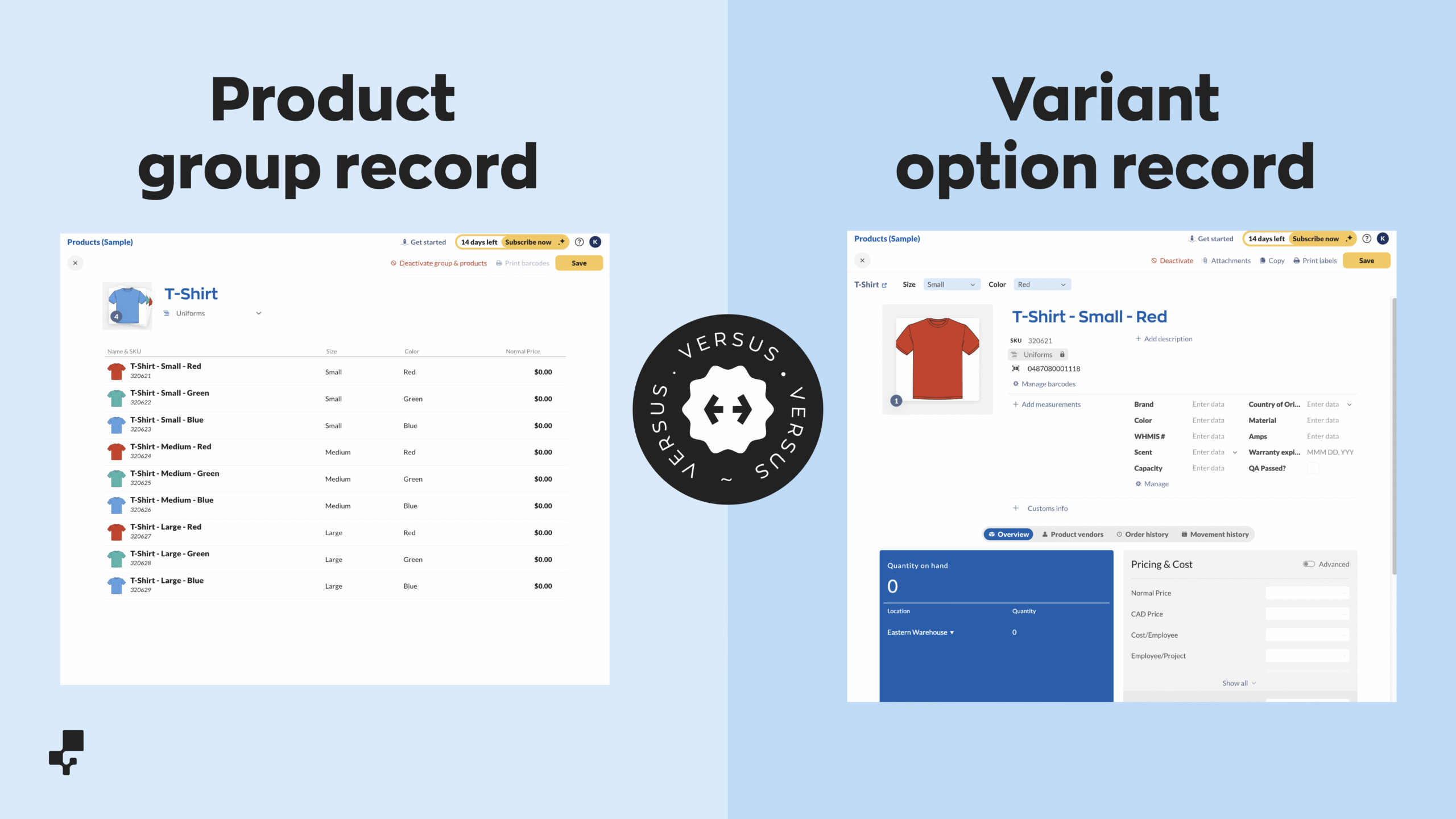
In inFlow, you can view both the product group and the variant option from the product list. The main difference is that the product group (T-shirt) isn’t available for purchase, and in inFlow, it serves as a way to organize variant options.
Variant option product records let you manage products that match specific variant options, such as size and color. These records will enable you to view individual product details, set prices, update product information, and review your product order history.
Creating a product group
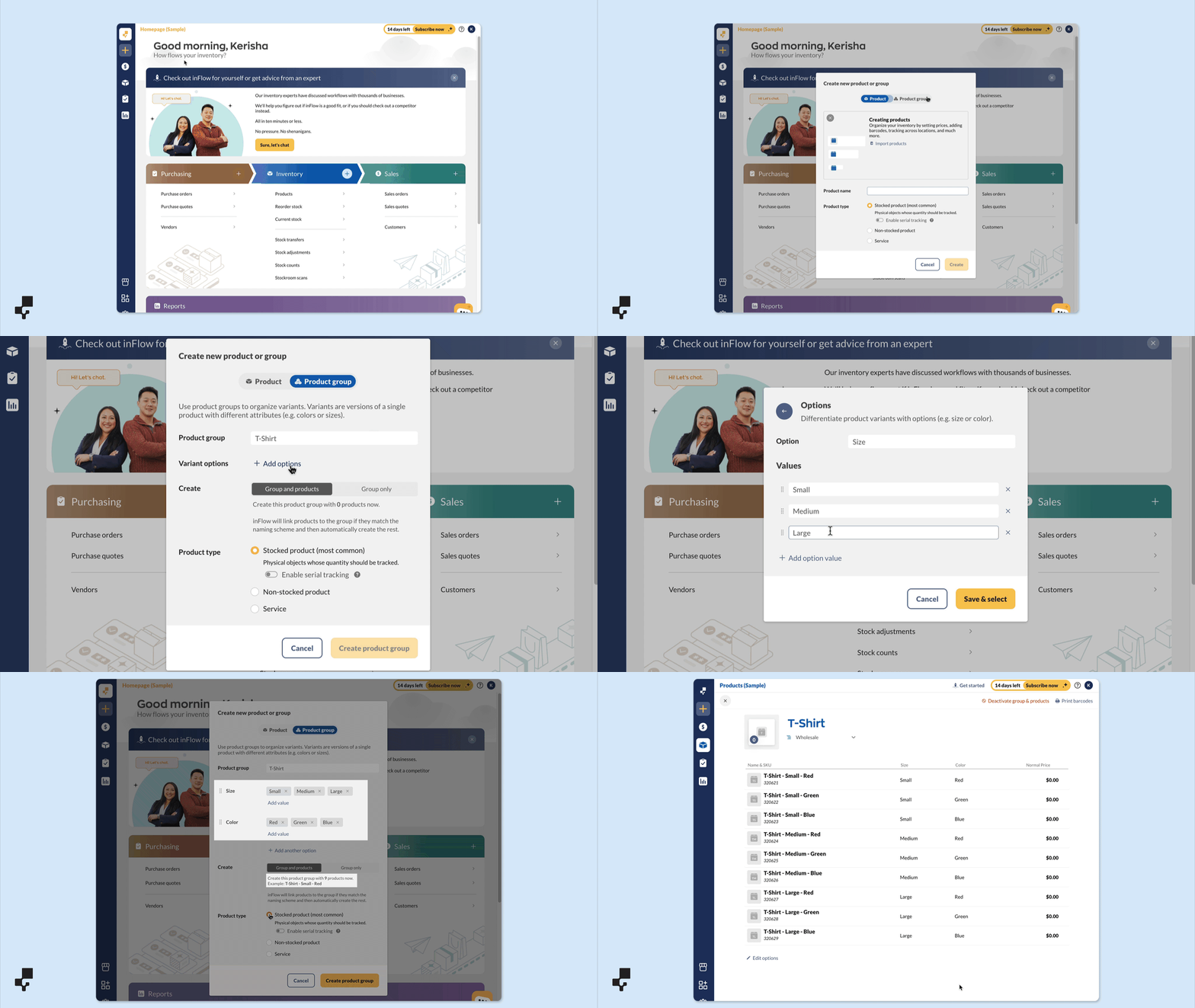
Product groups are how inFlow organizes variants and options. Product groups have limited features, but they are essential for setting the overall product name and category.
- In the Main Menu > click Create > Product.
- Select the Product group tab.
- Enter the name of the product group. Optionally, you can create the variant options below. Each product group can have a maximum of six variant options.
- If you only want to create a product group without assigning/creating variant products, select Group only in the settings below. The Group only option is best for those who already have variant products in inFlow and would like to create a product group to organize all the variant options.
- Select the product type, then click Create product group to continue.
By selecting Group and products, inFlow will automatically create individual products for each variant option.
Automatically linking existing variant products to product groups
Creating groups and products
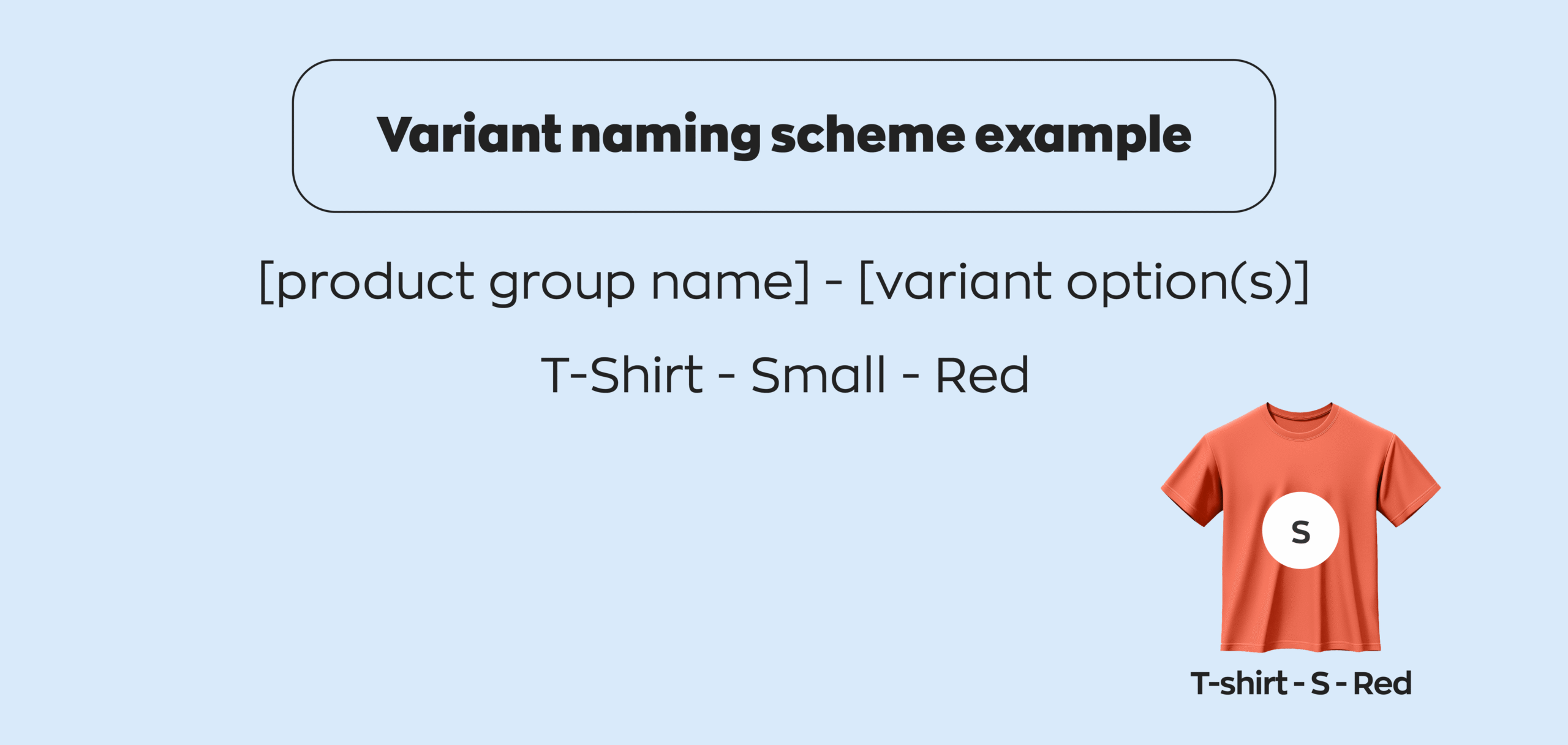
Suppose you added variant product records to inFlow before the product groups feature was available. In that case, inFlow can automatically associate the product group with variant products when you select the Group and products option, and the variants match the product group naming scheme.
inFlow can identify and automatically link variant products to product groups.
The variant naming scheme should include the product group name, a hyphen (-), and the variant option(s).
If the name is written as “Red/Small/Tshirt”, inFlow won’t recognize it during linking.
Linking variants to an empty product group
If you created an empty group, you can have inFlow link your variant products from the following steps.
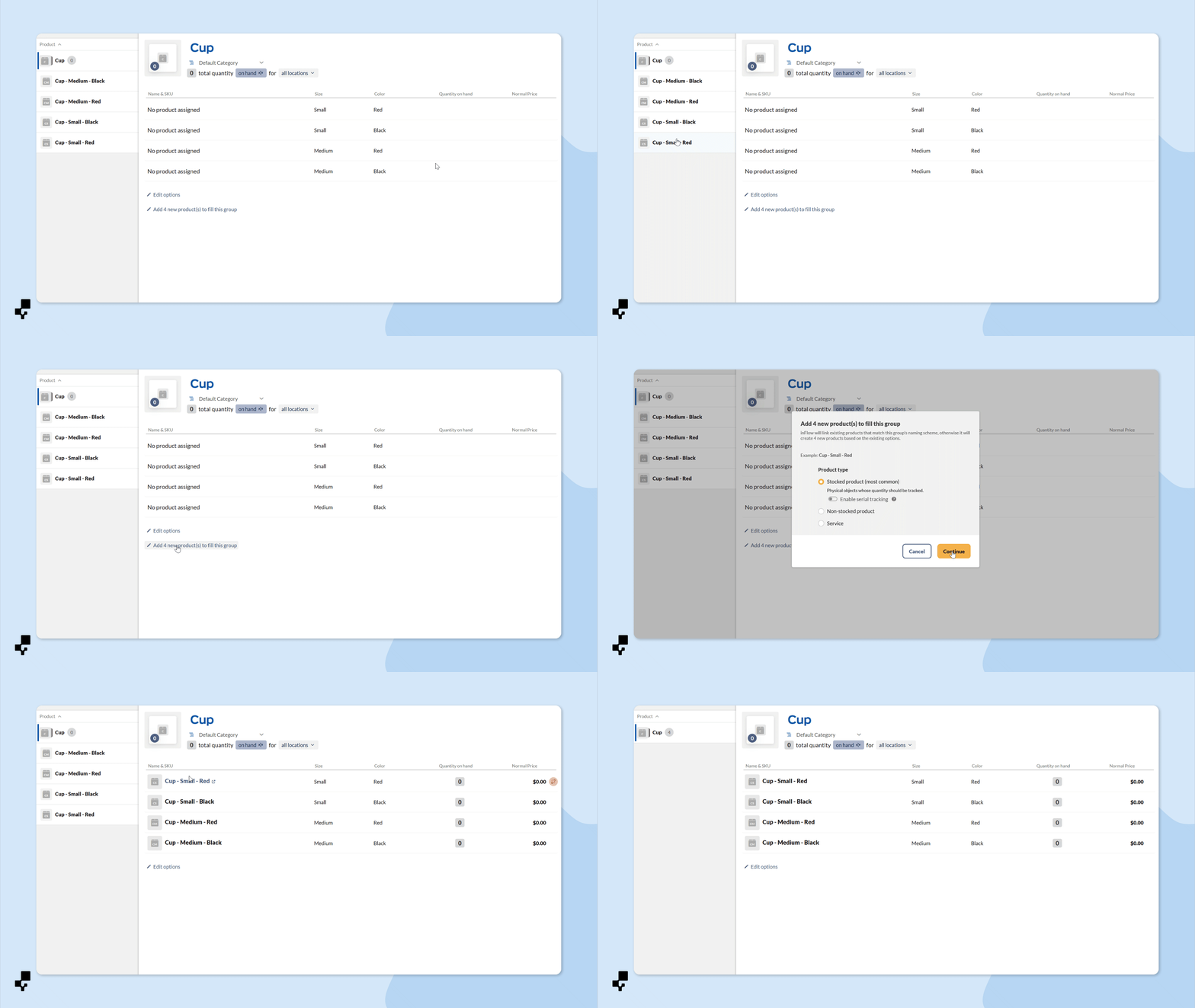
For example, in the image below, the product group is a Cup, and inFlow will link the cup variant options to it.
- To link the items, click Add new product(s) to fill this group under the product list.
- If inFlow finds existing products that match this group’s naming scheme, it will automatically link them. Otherwise, it will create four new products based on the existing options.
Manually linking variant products to product groups
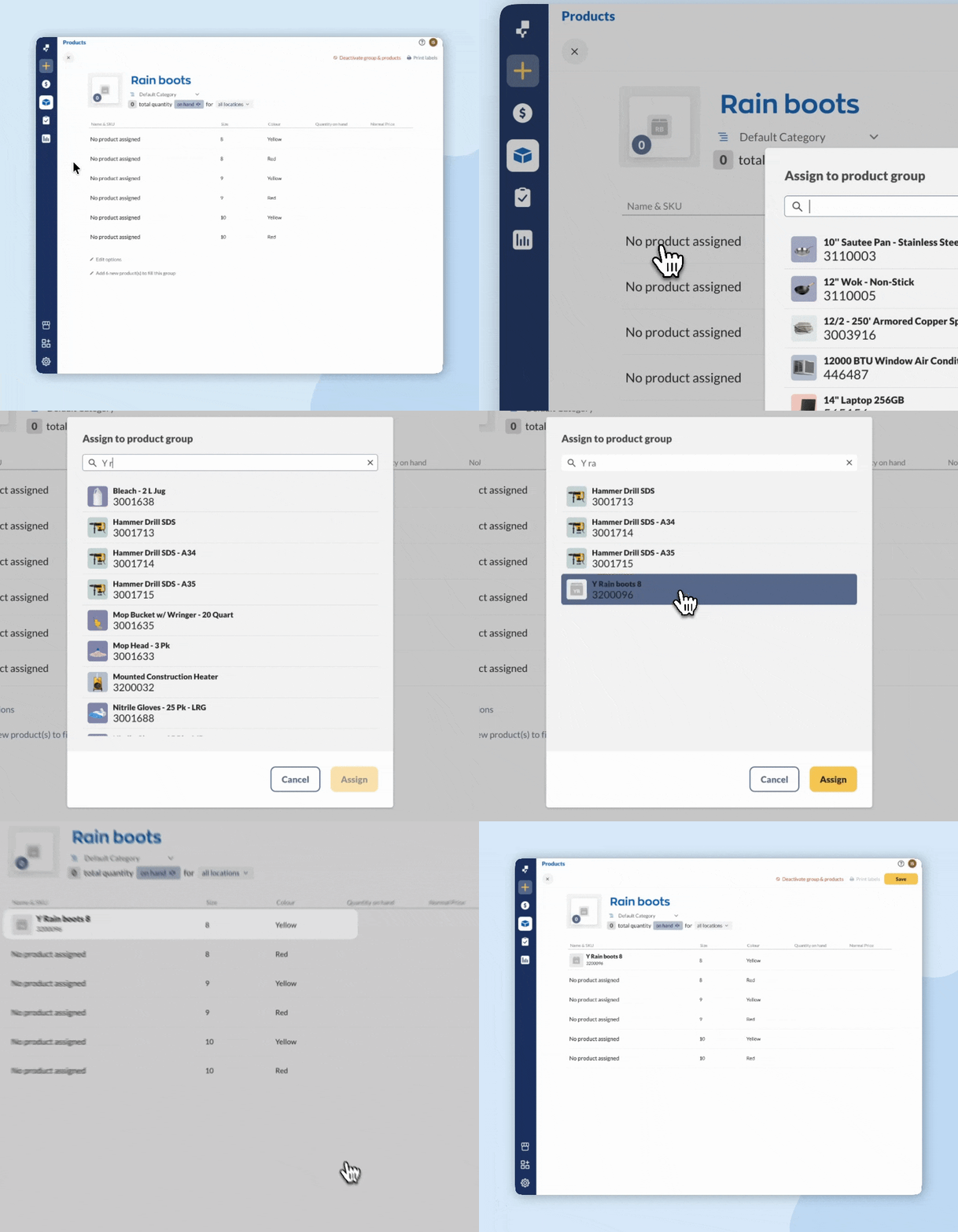
If you have variant products in inFlow that don’t follow a consistent naming scheme, you can manually assign those variant products to a product group.
- Create or open an existing product group.
- Hover over a product with No product assigned, then click Assign a product.
- Search for the variant option from the product list, then click Assign.
- Save the product group when done.
Product group details
Product groups have limited options for editing. Here is where you can organize the overall product name, images, category, and variant options.
- From the Main Menu>select the Inventory icon>Products.
- Open a product group to view and edit the details.
Add images to the product group
Product images are a helpful tool for identifying all of your products, especially when there are variants.
- Click on the image icon
- Drag the image(s) into inFlow, or click to select.
- Click Done, then save the product group record.
For inFlow accounts that use the Online Showroom, the system displays the first variant option image in the product list view if you haven’t added group images.
Setting the default product group image
If you’ve added multiple images to the product group, you can change the default image with the steps below.
- Select the product image, then select the product you want to be the default.
- Click on the ellipsis, then select Make image default.
- Select the X to close the image, then click Done on the product group images screen.
- Save the product record to save the changes.
Editing the product group category
The category field is one of the few settings where you can only edit from the product group record.
inFlow locks the product category for the variant options. When you change the category for a product group, the change applies to all variant options within that group.
- Select the category from the drop-down menu. To add a new category, select Manage categories.
- Pick the new category, then save the product group record.
- On the pop-up, you’ll see confirmation of the category change. Click Continue to proceed with the changes.
Unlinking products from the product group
To remove variant options from a product group, hover over the option and select the Unlink button.
Products can only be unlinked individually from the product group record.
Editing options from the product group
Suppose you need to make changes to the options in a product group, such as adding more options or removing those that are no longer available. In that case, you can do so by selecting “Edit options” from the bottom-left corner of the product group record.
- Click Edit options.
- Select either Add value or the X next to remove an existing option from the product group. You can only add or remove product options; you cannot edit them. If you find an error with a variant option, remove it and turn off the related variant option products.
- Click Save when done.
- Then save the product group record.
When you remove options from a product group, the system automatically unlinks the related variant option product records from that group.
Unlinked products will remain active. inFlow will convert these products to a standard product that you can view or modify from the product list.
Deactivating product group & variant products
To make a product unavailable for purchase or sale, click Deactivate group and products at the top right-hand corner of the product group record.
This action will deactivate the group and its options with a single action.
If you’d like some of the options to remain active, unlink them from the group before deactivating.

Variant options details
Variant options are the individual products that you sell within a product group. To view a variant option:
- At the top right of the screen, select “Show variants.” This setting is off by default, so only product groups will appear along with regular products. To see the variant options, toggle this setting on.
- From the Main Menu>hover over the Inventory icon>Products.
- Select a product record from the list to view and edit the details.
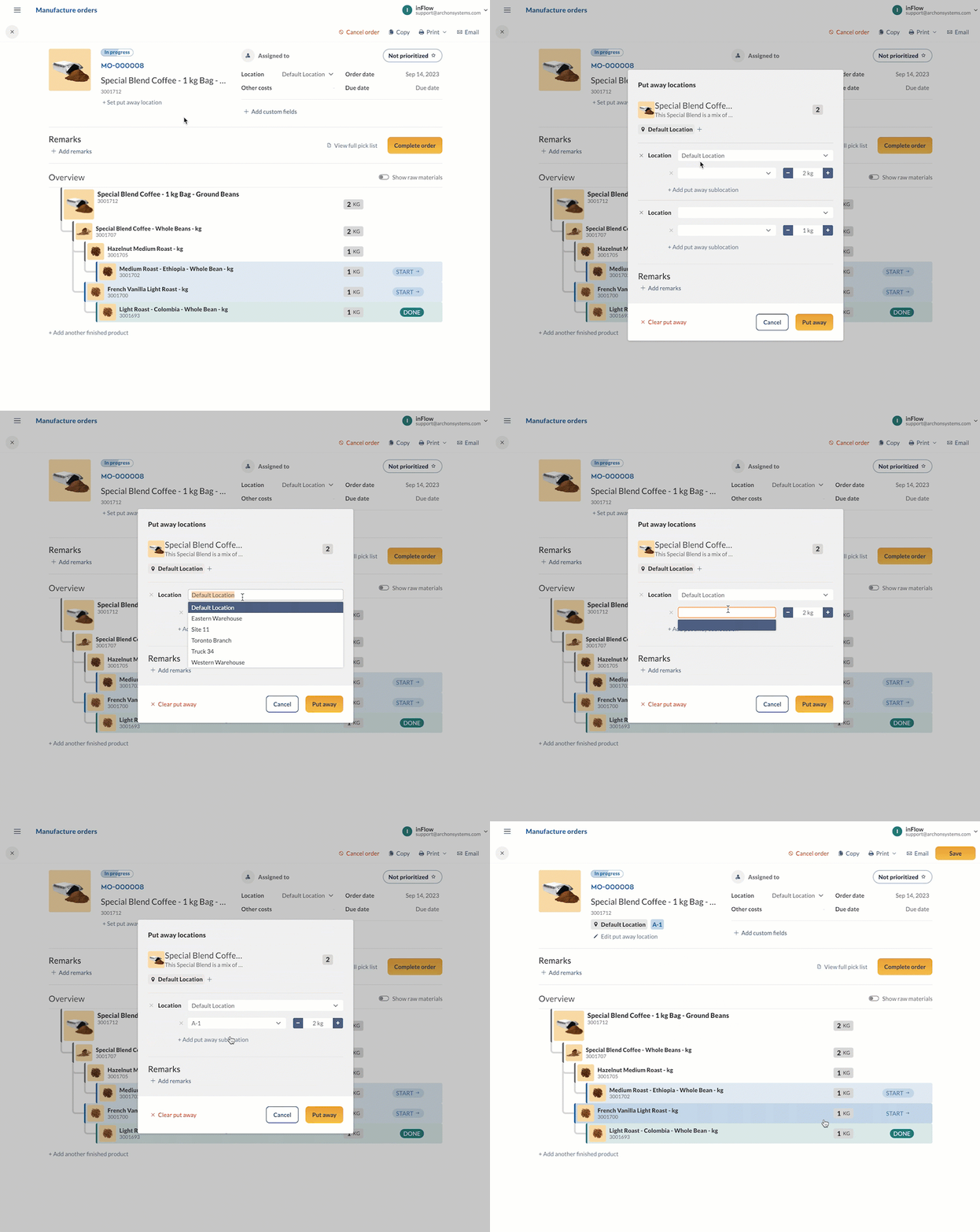
Variant options have all the same functionality as inFlow’s standard products. Meaning you can modify details such as:
- Product option name
- SKU
- Barcode
- Image
- Custom fields
- Pricing
- Reorder points & more.
They also function similarly to standard products, which means they can be of various types, added to bill of materials lists, purchased, sold, or transferred to other locations.
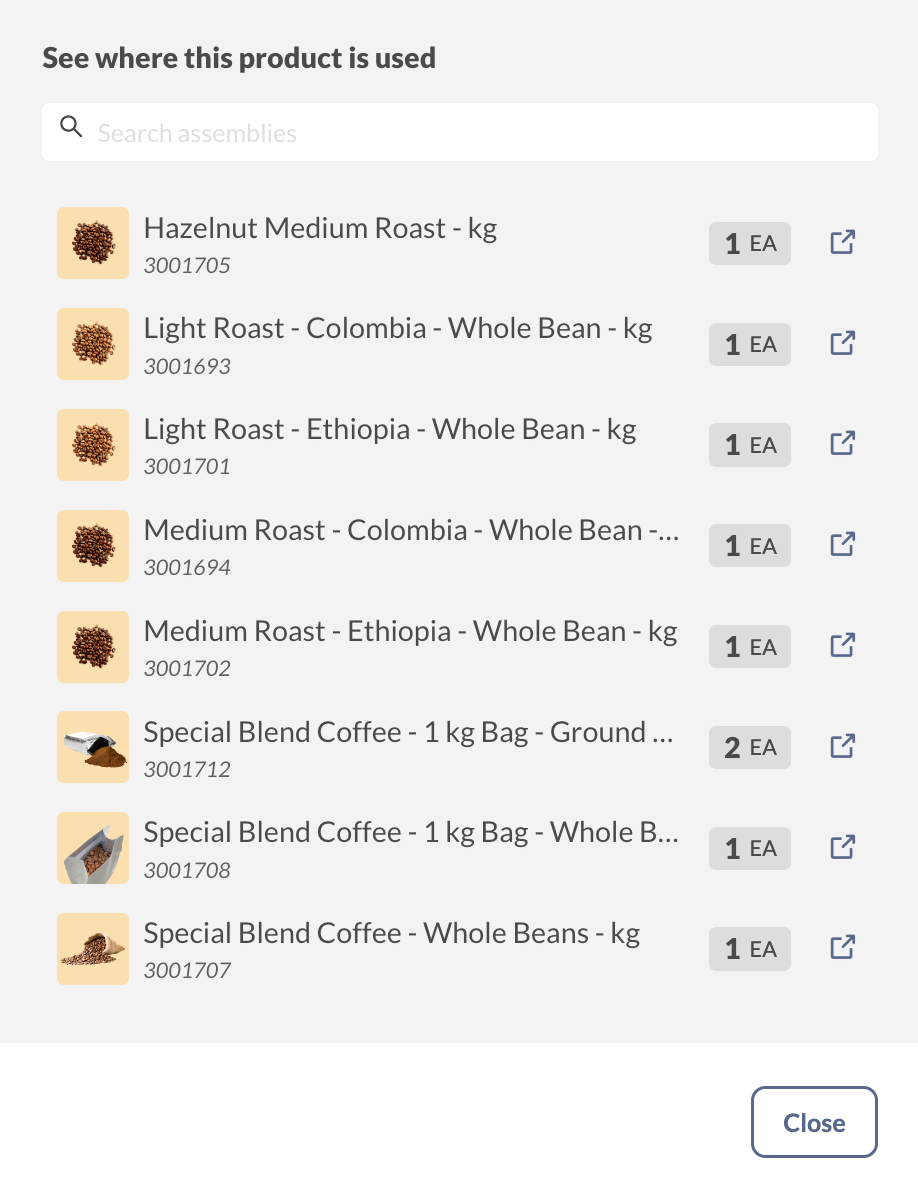
Options have a link to their related product group at the top-left corner, along with a drop-down menu that allows you to toggle between different option product records.
Options have one limitation compared to regular inFlow products: you cannot modify the product category directly on the option record. Instead, the system always sets the category to match the product group to which it belongs.
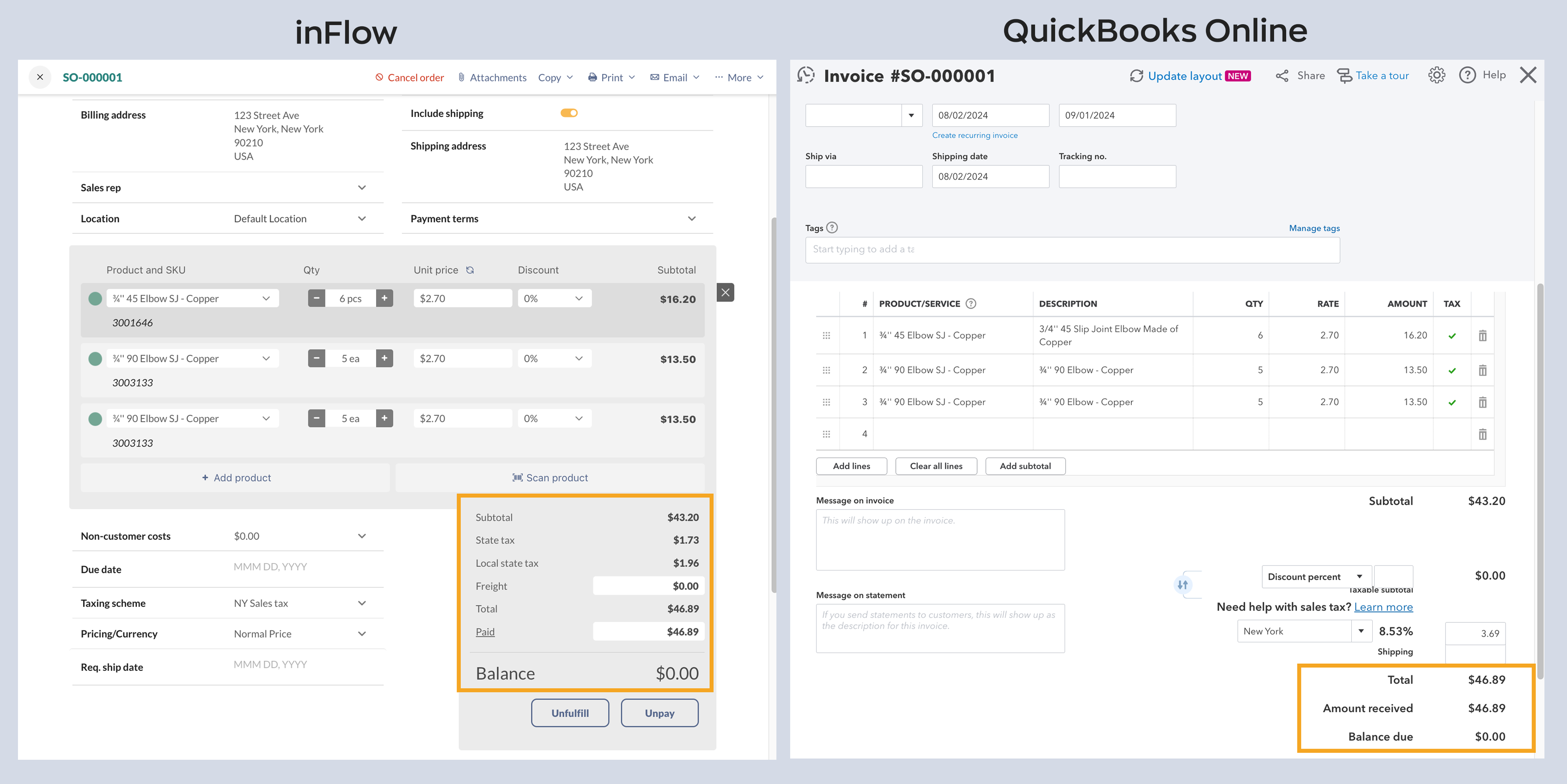
Viewing variants from the product list
By default, inFlow displays standard and product groups while hiding the variant options product records. To view variant options on the product list, toggle on Show variants at the top-right-hand corner of the screen.
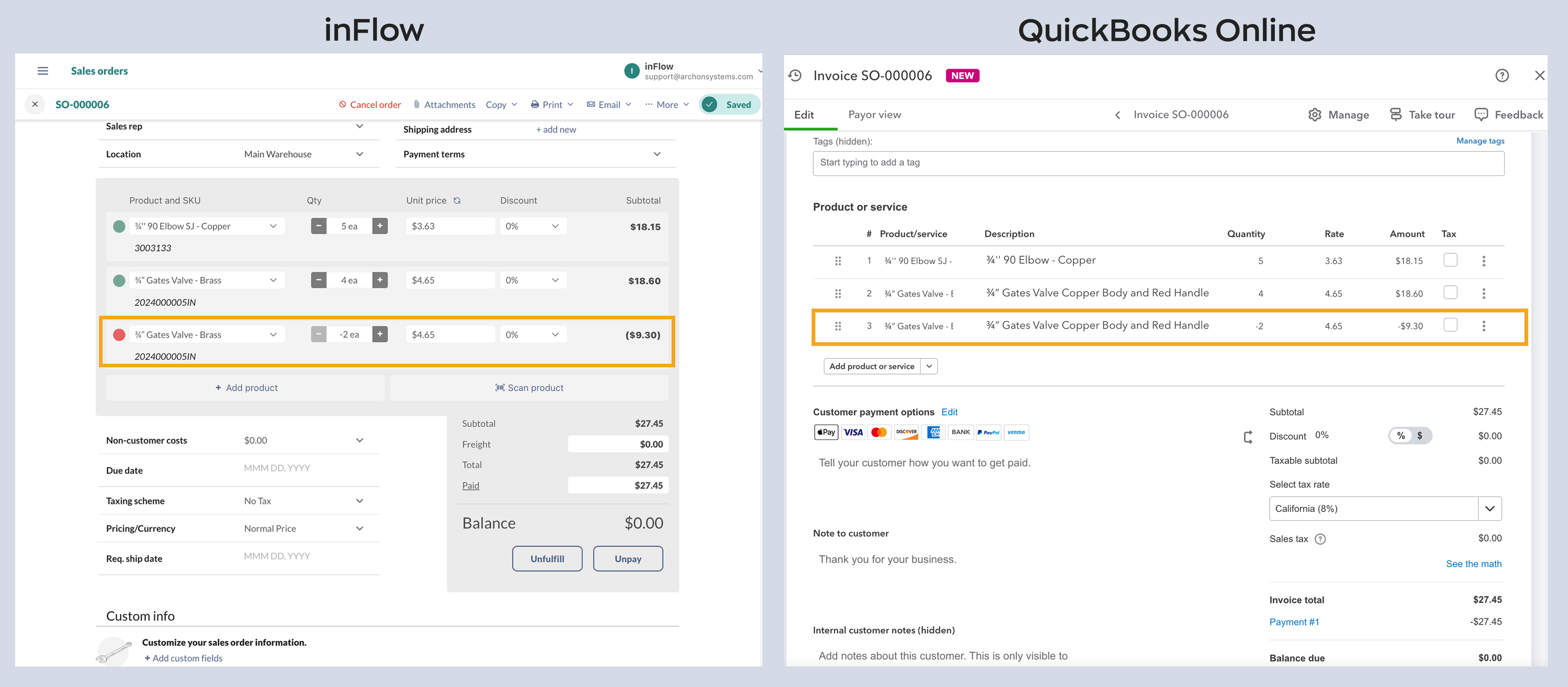
Variant products on orders
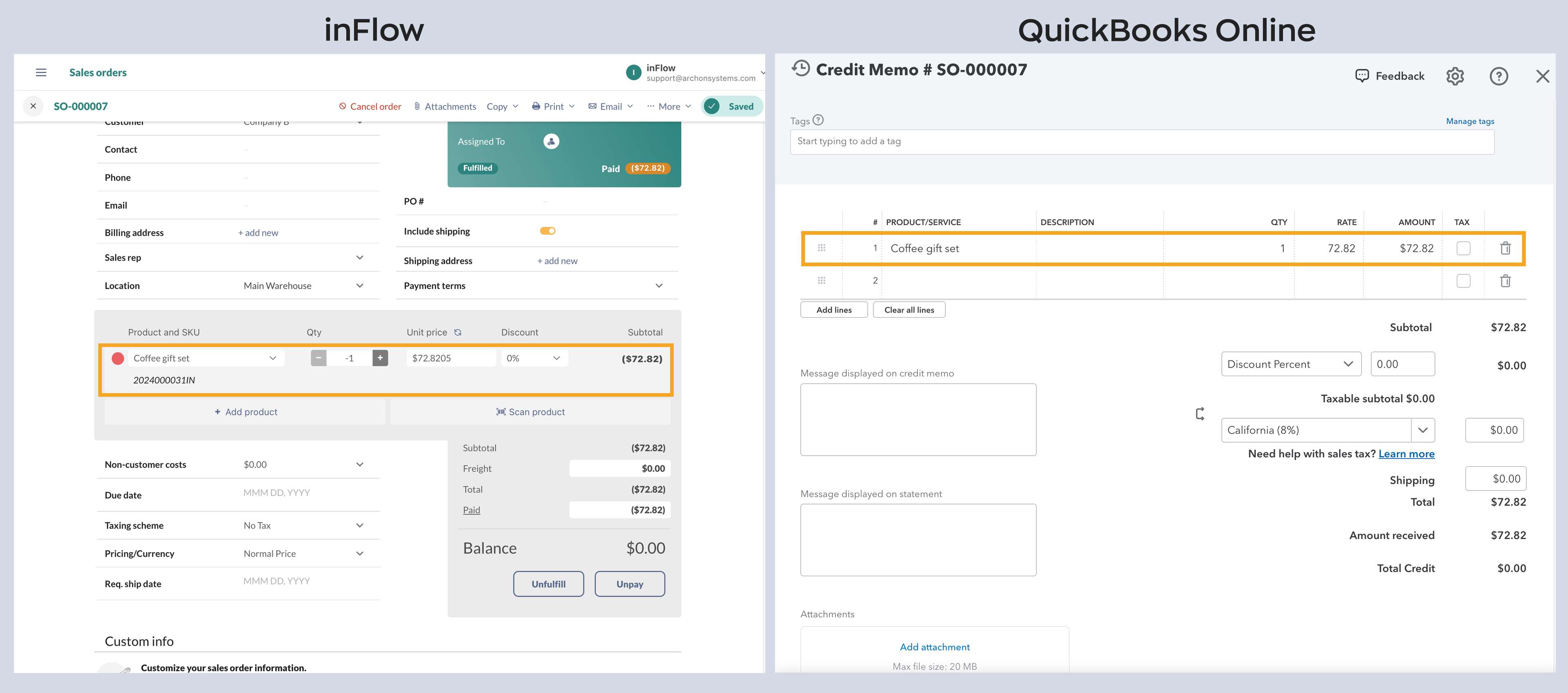
When adding variant products to orders, you’ll select the variant option products as shown in the example sales order image below.
Setting variant options in the inFlow settings
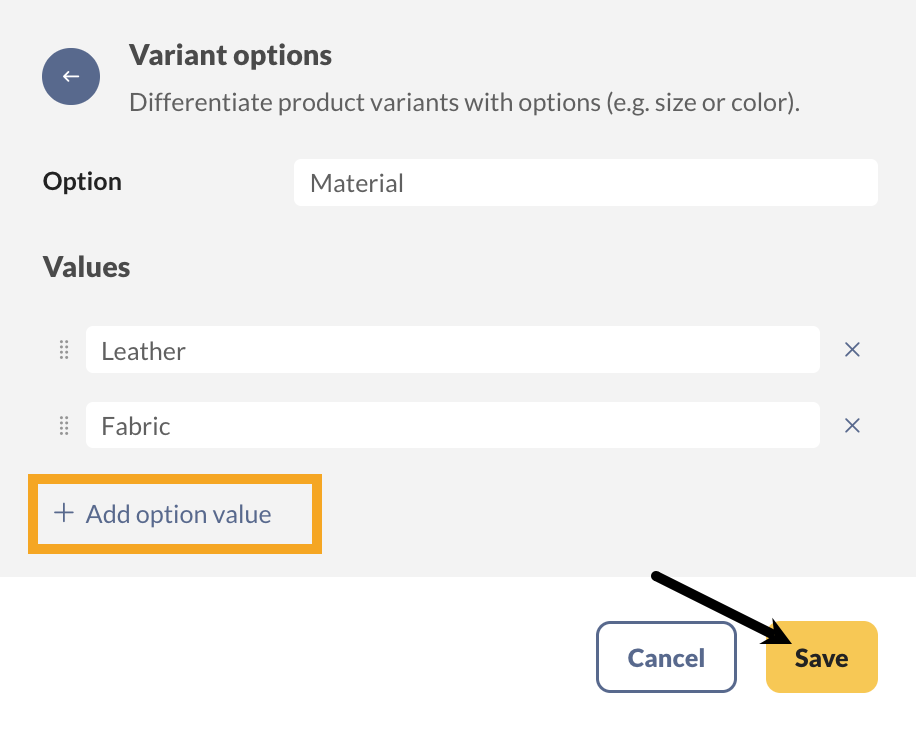
If you’d like to add several variant options to your inFlow settings, you can add them all at once in the Inventory settings (Main menu>Settings>Inventory).
How will variants work with the Online Showroom?
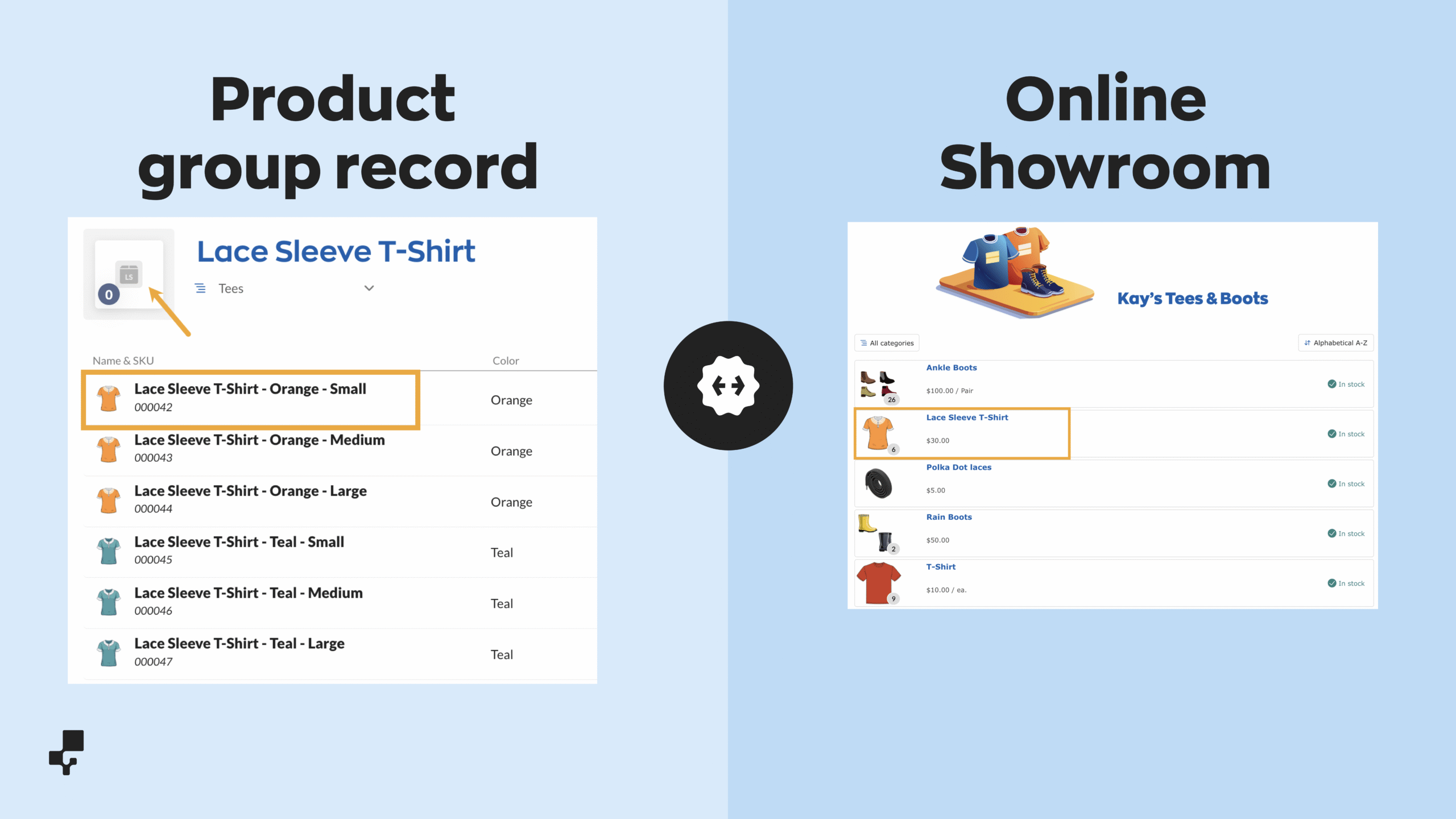
When using the Online Showroom, the product group is listed on the product list, accompanied by a number in the corner of the product image that represents the available variants.
When selected, drop-down menus are available for your customer to choose an option.
When the sale syncs to inFlow, only the variant option product will appear on the sales order, not the entire product group.

What product details does the Online Showroom list?
You can select which details are shown for each product from the Showroom settings, just like with standard products.
If your Showroom setting displays the quantities in stock, the Showroom list page will show the combined quantities available for all variants.
When you select a product from the Showroom listing, you will see the default variant option first (the one listed first in the product group), along with the SKU, pricing, and other product details.
What if my product group doesn’t have an image?
If there is no product image on the product group record, the Showroom will display the image for the first product in the product group.
Can inFlow’s variant products integrate with my ecommerce store?
Yes, you can connect inFlow’s variant products to ecommerce solutions such as Shopify or WooCommerce.
inFlow will be able to push and pull product details from the variant options as long as they have a matching SKU.
For inFlow accounts that don’t have SKUs, the ecommerce solutions will use the product name to sync to a product with the matching name. Both systems need to have products with identical product names.
Currently, inFlow doesn’t support pushing product group updates to any of the ecommerce integrations.
Using variants on inFlow for Mobile & Windows
Product groups are a feature available only on inFlow for Web. For other clients, such as inFlow for Windows or Mobile, you can view the variant option product records in the same way as standard inFlow products.
 Yes, thanks!
  Not really

0 Comments