



 Home
Home


How to update your products with CSV imports
When getting started in inFlow, you might find yourself filling out your product information as you go. You can also update your products in bulk at any time! See below for complete details.
Web
You can update your product records one by one, but if you’d like to make changes in bulk, re-importing your product details into inFlow is the quickest way to do so. This can be done in 3 steps.
- Exporting from inFlow.
- Editing the CSV.
- Re-importing to inFlow.
Step 1 – Exporting from inFlow
- Go to Main Menu >Settings>Export.
- Select Product Details from the Data type section.
- When your CSV is ready, a window will pop up asking you where you want to save the CSV file. Then click Save.
Step 2 – Editing the CSV
- Open the CSV that was exported from inFlow Inventory.
- Find the columns where you want to make changes.
- Save the CSV file.
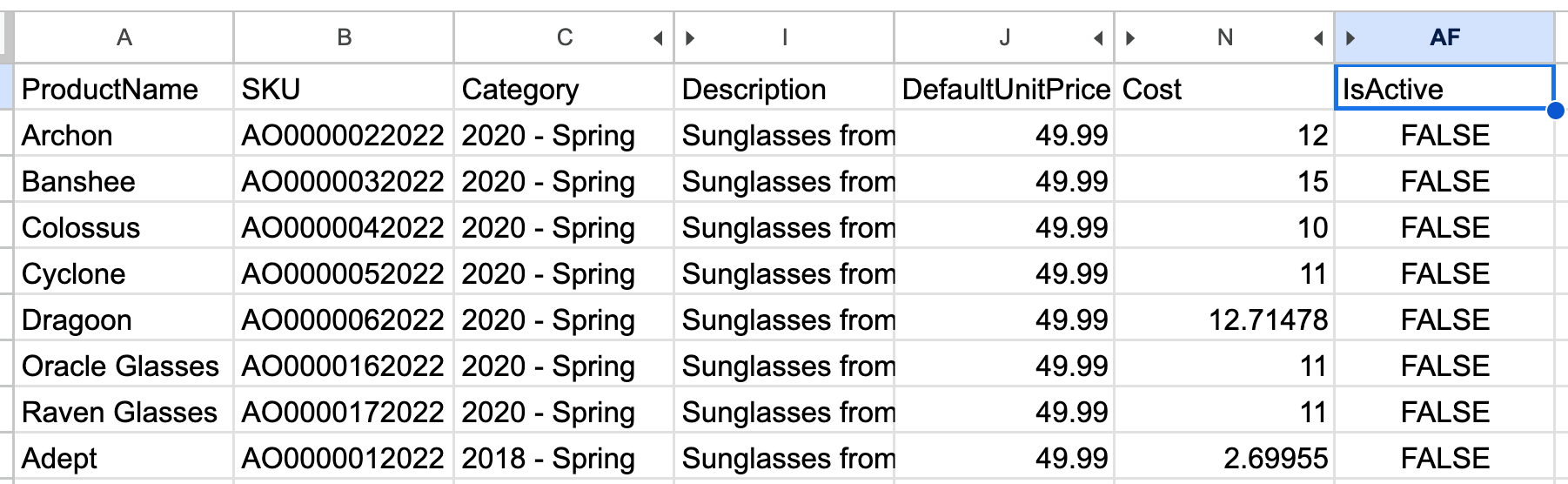
Are you looking to deactivate multiple products at once? Enter FALSE in the IsActive column.
Step 3 – Re-import to inFlow
- Go to Main Menu >Settings>Import.
- In the Data type drop-down menu, select Product details. Click Select file to upload your CSV to inFlow, then click Next.
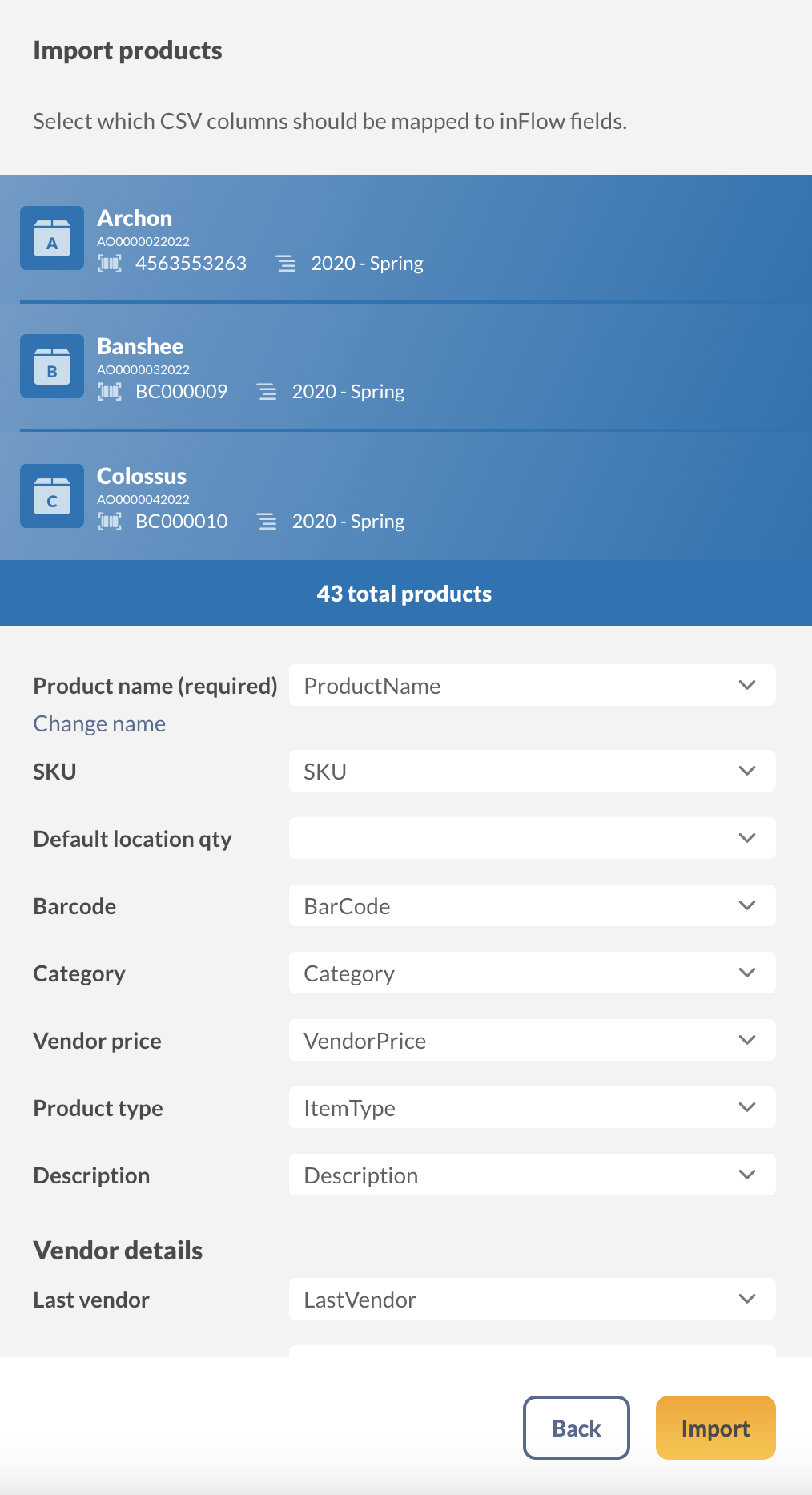
- A preview of your product details will appear. If you would like to edit the way the fields are mapped from your spreadsheet, click Edit Data Mapping.
- You can then match the fields to the left (inFlow fields) with the fields in the drop-down menu.
- Example: Match the Barcode inFlow field with the Barcode field in the drop-down menu.
- When done, click Import.
From here, the import will run in the background, and later, you’ll be emailed when the import is complete. When it’s complete, you will see a message mentioning how many lines have been updated. Each line item corresponds to a line in the product details CSV.
Updating products by CSV webinar
Check out this webinar for step-by-step instructions on updating products using a CSV.

Windows
You can update your product records one by one, but if you’d like to make changes in bulk, re-importing your product details into inFlow is the quickest way. This can be done in 3 steps
- Exporting from inFlow.
- Editing the CSV.
- Re-importing to inFlow.
Step 1 – Exporting from inFlow
- Go to Main Menu >General > Export data.
- Select Product Details from the Data type section drop-down menu. (This file will contain information you can get from the product info page, like Price, Cost, Unit of Measure, Barcode, etc.)
- Click Browse to choose where you’d like this file to be saved.
- Click Export.
Step 2 – Editing the CSV
- Open the CSV that was exported from inFlow Inventory.
- Find the columns where you want to make changes.
- Save the CSV file.
Step 3 – Re-import to inFlow
- Go to Main Menu > General > Import data.
- In the Data type drop-down menu, select Product details.
- Click Browse to locate the CSV from your computer.
- Click Next.
- Match the fields to the left (inFlow fields) to the fields in the drop-downs.
- Example: Match the Barcode inFlow field with the Barcode field in the drop-down menu.
- When done, click Import.
From here, the import will run in the background, and later, you’ll be emailed when the import is complete. When it’s complete, you will see a message mentioning how many lines have been updated. Each line item corresponds to a line in the product details CSV.
Updating products by CSV webinar
Check out this webinar for step-by-step instructions on updating products using a CSV.
 Yes, thanks!
  Not really


looking for bulk import to alter location and sub location… but can’t find it anywhere.